![imagotipo_negativo (1)-1.png]](https://help.adsmurai.com/hs-fs/hubfs/imagotipo_negativo%20(1)-1.png?width=40&height=40&name=imagotipo_negativo%20(1)-1.png)
- What are AI insights and what do they offer?
- How to get started with AI insights
- Step 1: Fill in the Brand context in your Organization profile
- Step 2: Configure the Style & Format in Dashboards
- Step 3: Chat with the AI insights button and save your analysis
- Tips to get the most out of your reporting
- Important to keep in mind
What are AI insights and what do they offer?

The AI insights button is the AI-powered analysis interface that lives inside your Dashboards. It lets you generate reports automatically from your Dashboard data in real time and, on top of that, iterate on them using natural language. Analysis is no longer a separate step but a continuous flow: you go from “seeing the data” to “understanding what to do” in seconds.
When you open it, the AI takes as context the information from your organization, the general Dashboard configuration (global dates and filters) and the configuration and data of every widget. From there it returns an initial analysis that works as a base to build on: you can refine it, ask it questions and shape it until it says exactly what you need.
Whatever you generate doesn’t stay in the conversation. You can save it to your report in two ways:
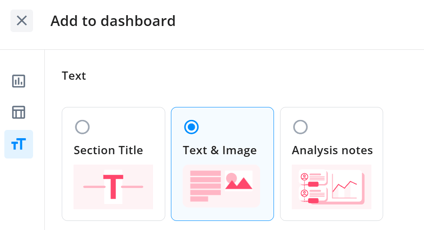
- Statically, as a snapshot of the analysis at that moment using a Text & Image widget. Ideal for fixed context (for example, the conclusions of a month-end close that you don’t want to change).
- Dynamically, so the content follows the date range you select in the Dashboard and always stays up to date, using the Analysis Notes widget.
What this gives you:
- ⏱️ Radical time savings in reporting: cuts down hours of manual analysis.
- 📍 Everything centralized in one place, without leaving the Dashboard.
- 🎯 Actionable analysis: turns your data into conclusions and next steps.
- 🔁 Full flexibility to iterate and adjust the analysis with natural-language questions.
How to get started with AI insights
For the AI to return useful analyses tailored to your client, it’s worth spending a few minutes on the upfront setup. These are the three steps:
Step 1: Fill in the Brand context in your Organization profile
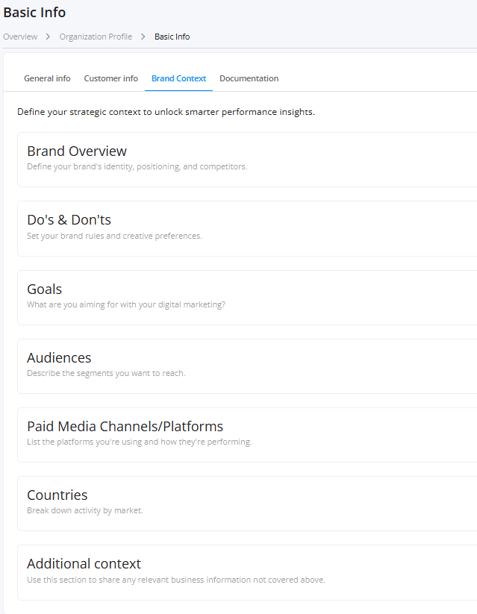
Before generating any insight, go to your Organization profile and fill in the brand’s Brand context.
This step is probably the most important of all. The Brand context is the information the AI uses to understand who your brand is, what you do, what your goals are and which market you operate in. Without this context, the AI can only describe numbers; with it, it can interpret results from the brand’s specific reality and avoid generic conclusions or assumptions that aren’t backed by the data.
In other words: the quality of your analyses depends directly on the quality of the context you provide. A good Brand context is what separates a report that “sounds like a template” from one that reads as if it were written by someone who truly knows the account.
🔑 You need an admin role to fill in the Brand context. If you don’t have it, request it from whoever manages your organization’s permissions.
Step 2: Configure the Style & Format in Dashboards
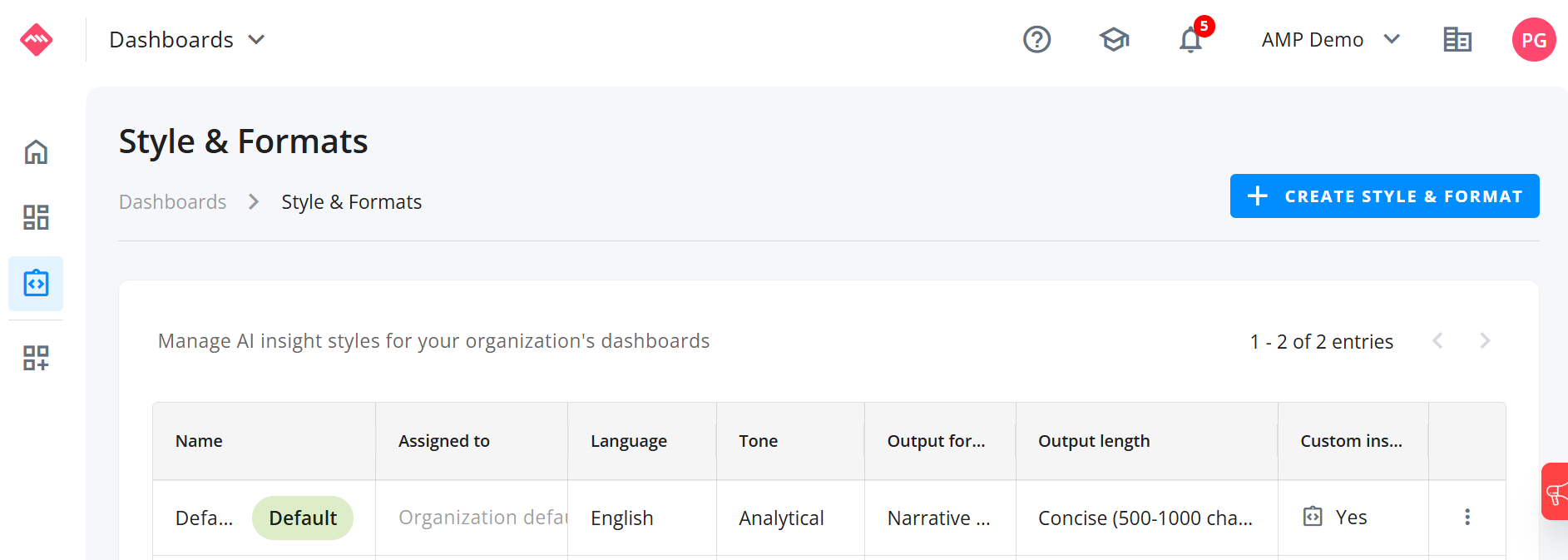
Once you have the brand context in place, go to Dashboards and configure the Style & Format. This is where you define how you want the AI to write the texts: the “what” comes from the Brand context and the data; the “how” is what you define here.
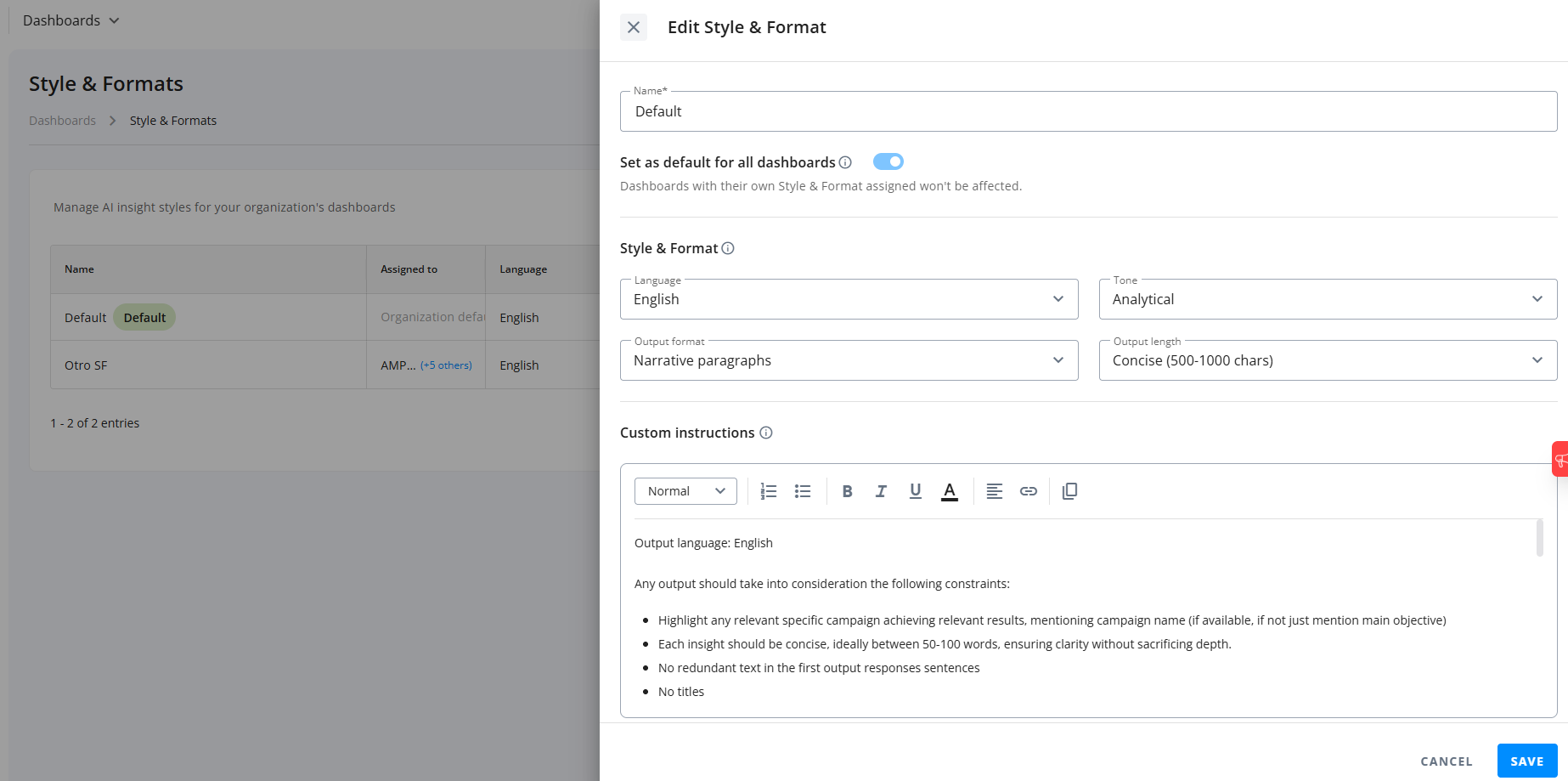
You can configure properties such as:
- Language of the analysis
- Tone of the writing
- Type of analysis (executive, technical, tactical, strategic…)
- Level of detail
- Custom instructions
The big advantage is that you can create, edit, duplicate and delete different Style & Formats depending on what you need, and assign each one to the relevant Dashboard. For example:
- An executive analysis
- A technical optimization analysis
- A weekly tactical analysis and a separate monthly strategic one
- Analyses tailored by market (Spanish, American…) or by data source (Paid, GA4…)
Each Dashboard always has an active Style & Format (if you don’t configure one, the default applies). You can change it before generating insights and even edit it while you’re reviewing results; the AI will automatically use that configuration to adapt the output.
You can manage your Style & Formats from:
- The side menu in Dashboards
- The chatbot configuration
- The insights analysis flow, once you’ve generated an output
Step 3: Chat with the AI insights button and save your analysis
With your context and style ready, open the AI insights button inside the Dashboard and start working. The recommended flow is:
- Select an Agent - we recommend selecting Insights Generator Flash for fast insights from dashboard data or Data Visualisator for creatings charts and tables (coming soon)
- Generate an automatic insight to get an initial analysis as a starting point.
- Chat with the AI and ask it questions in natural language (for example: “Which campaign got the best results?”).
- Iterate on the answers to refine them (for example: “And only on Meta?”).
- (Optional) Upload files —PDFs, Excel, images or text— to enrich the analysis with additional context.
- When you’re happy with it, copy the result and/or save it as a widget in your report. You can dynamically add this information to an existing or a new Analysis notes. In case you want to use it as a static widget to your report, make use of
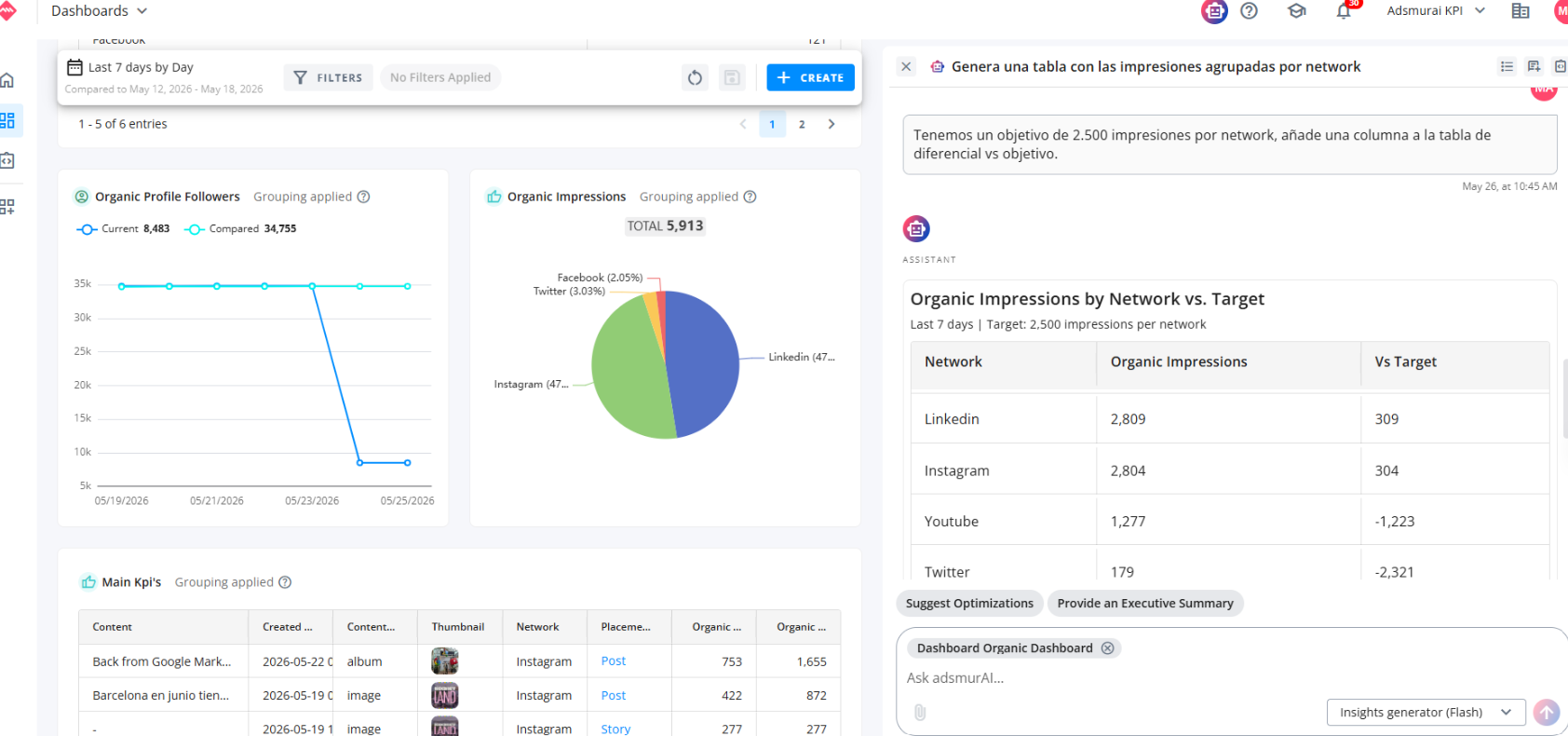
Beyond text, you can ask the AI to create tables and charts for you, using the Dashboard data or the data you provide in the prompt: results vs. goals comparisons, the evolution of a metric, new groupings, calculated metrics, and more. You can also save (pin) those visualizations to the Dashboard.
Tips to get the most out of your reporting
A few tricks from the team to make your analyses multiply in quality:
- Match the Dashboard structure to the analysis structure. Remove redundant widgets and make the Dashboard structure mirror the one you’ll later ask it to analyze, using the Section Titles. For example: “Use the following analysis structure: 1) executive summary, 2) global results vs. goal comparison, 3) results by platform, 4) optimization suggestions.”
- Be explicit in your custom instructions. State WHAT you want, WHAT you don’t want, WHERE to get it and HOW you want it. Always include the analysis structure, the questions to answer and the do’s and don’ts. For example: “The executive summary should answer whether we hit the goals, what worked well and what should be optimized, in three lines and aimed at C-level, without making assumptions that aren’t backed by the data. You can find this information in the widgets titled ‘results vs. goals’ and ‘platform KPI analysis.’”
- Give it examples. The AI is exceptionally good at copying patterns: hand it a real example you’ve made yourself and you’ll see the quality of the results soar.