![imagotipo_negativo (1)-1.png]](https://help.adsmurai.com/hs-fs/hubfs/imagotipo_negativo%20(1)-1.png?width=40&height=40&name=imagotipo_negativo%20(1)-1.png)
One Tag does not offer a built-in option to limit the amount of events to be triggered by event, to avoid sending several form submits if the user refreshes the page (for example).
One Tag offers a built-in option to limit the events triggered by event and page, but not per user. You can set it up on the Google Tag Manager tag, under Advanced Settings.
Meta/Facebook
Meta doesn't allow advertisers to change the conversion tracking to only once per user. A workaround is to follow the following steps:
-
Create a Cookie or Local Storage Variable in GTM:
-
In GTM, go to Variables > User-Defined Variables > New.
-
Select First Party Cookie or JavaScript Variable depending on the storage method (cookie or local storage).
-
For example, if using a cookie, name it something like
conversionSubmittedand configure the variable to retrieve this cookie’s value. -
If using local storage, create a custom JavaScript variable to check if a
conversionSubmittedkey exists.
-
-
Set Up the Trigger Condition with Cookie/Local Storage Logic:
-
Create a new trigger that will fire only if
conversionSubmitted(cookie/local storage) is not set or empty. -
Set a condition for this trigger:
-
If variable
conversionSubmitteddoes not exist (meaning the user hasn’t submitted this form recently).
-
-
Attach this trigger to the One Tag conversion event tag.
-
-
Create a Tag to Set the Cookie or Local Storage:
-
Go to Tags > New > Custom HTML or Custom JavaScript.
-
Create a script to set the
conversionSubmittedcookie or local storage item when the form is submitted (e.g.,conversionSubmitted=true). -
Set a time-based expiration (e.g., 24 hours) if using a cookie, or leave it until the next session if using local storage.
-
Google allows advertisers to customize how many times a conversion will be tracked. It can easily be set up:
- On Google Ads, go to Goals > Conversions > Summary
- Pick an existing Conversion or create a new one.
- Go to Settings within that event and pick the option "Once":
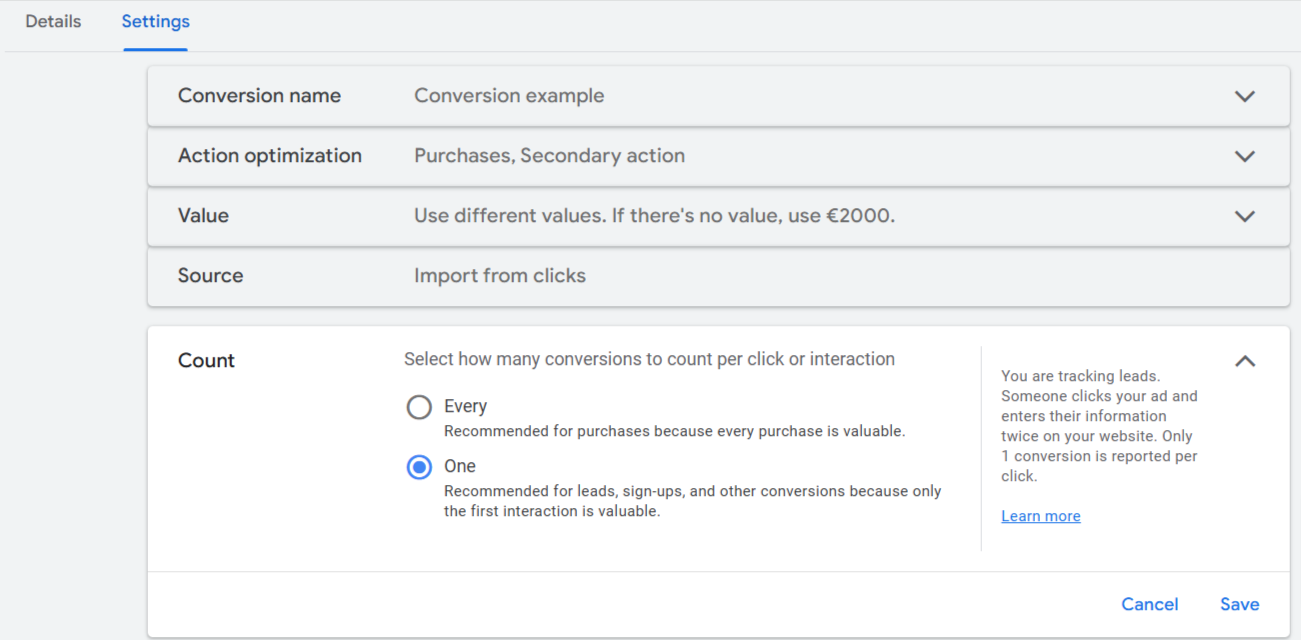
That's it! There's nothing to be done on One Tag.