![imagotipo_negativo (1)-1.png]](https://help.adsmurai.com/hs-fs/hubfs/imagotipo_negativo%20(1)-1.png?width=40&height=40&name=imagotipo_negativo%20(1)-1.png)
Setting up OpenAI Ads with Adsmurai One Tag ensures seamless tracking and optimization of your campaigns. To do this, first create a conversion key in OpenAI Ads and, if needed, create a web data source. Then, log in to Adsmurai One Tag, add a new Pixel, and enter the Data Source ID together with the generated key to complete the integration.
- How do I create a conversion key in OpenAI Ads?
Go to the OpenAI Ads settings page for conversions.
Click Manage conversion keys.
Select Create new key.
Copy and save the generated conversion key.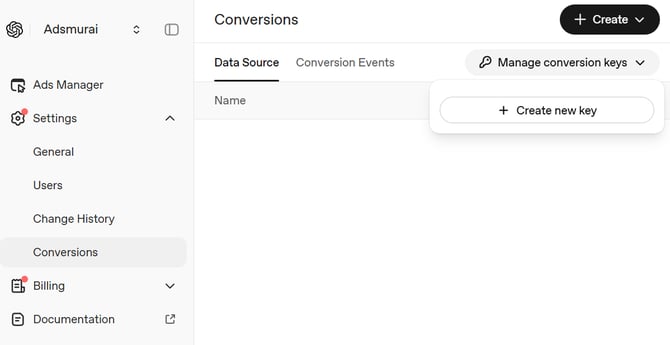
- How do I create a web data source if I do not already have one?
In the same conversions area, click Create.
Select Data Source.
Choose Web as the data source type.
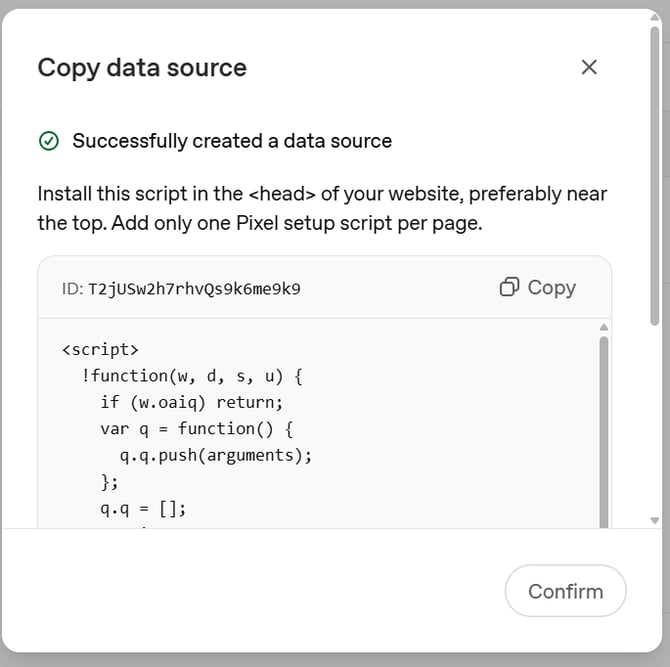
Copy and save the Data Source ID.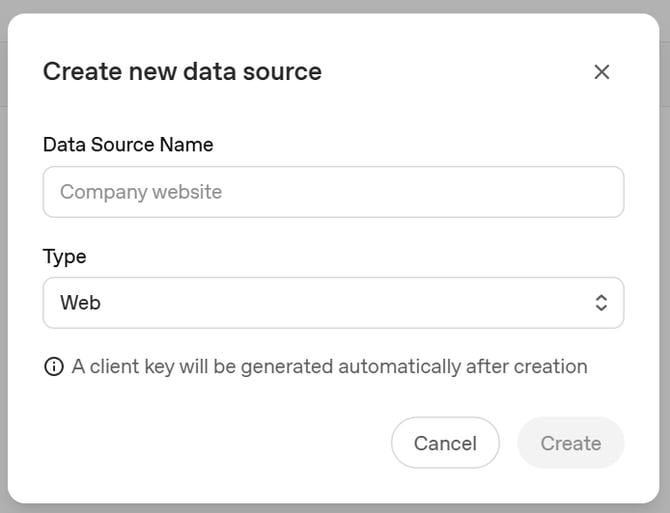
- How do I add the Pixel in Adsmurai One Tag?
Log in to your Adsmurai One Tag account.
Add a new Pixel.
Paste the Data Source ID from OpenAI Ads.
Paste the generated conversion key.
Save the configuration.
Done. Your OpenAI Ads tracking is now set up using Adsmurai One Tag.