![imagotipo_negativo (1)-1.png]](https://help.adsmurai.com/hs-fs/hubfs/imagotipo_negativo%20(1)-1.png?width=40&height=40&name=imagotipo_negativo%20(1)-1.png)
How do I get my Pixel ID and Token in the Linkedin Business Manager?
- Go to your Linkedin Ad Account.
- Navigate to the "Analyze" section, and click on "Conversion tracking"
- Click on "Data sources" > "Create source" > "Conversions API or CSV".
- Pick "Google Tag Manager" and "Generate token".
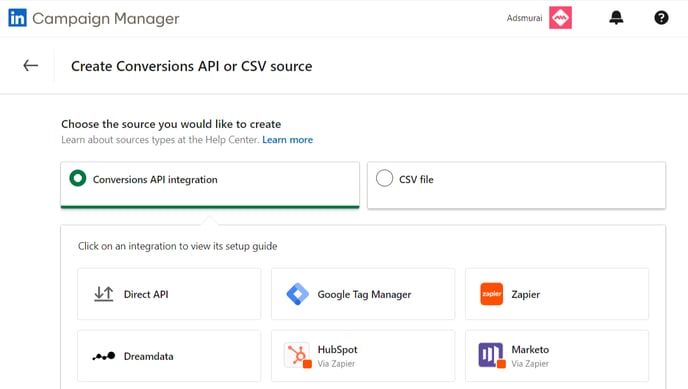
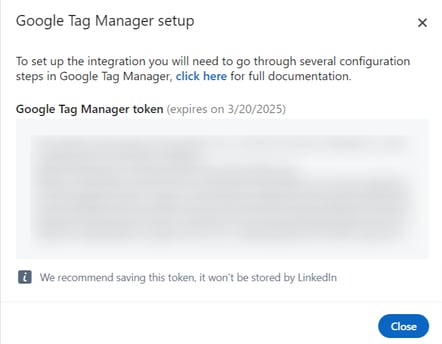
- Connect Google Tag Manager to your Linkedin Ad account, and copy the resulting Token.
- To get your Pixel ID, create first a Conversion if you don't have one already, and click on it. The Pixel ID will be on your url. Example: https://www.linkedin.com/campaignmanager/accounts/52345430806/conversions/15637204?imported=true&step=1 where "15637204" is your Pixel ID.
How do I add a new pixel in Adsmurai One Tag and generate my API key?
- Access your user area in Adsmurai One Tag.
- Click on the "+" symbol to add a new pixel. Choose "Linkedin".
- Paste both the Pixel ID and token obtained from Linkedin.
- Generate your Adsmurai One Tag API key.
- Copy and save this generated API key.
How do I integrate the API key in Google Tag Manager?
- Go to your Google Tag Manager container.
- Open the One Tag label.
- Paste the API key generated previously in Adsmurai One Tag.
- Paste the Linkedin Pixel ID in the field called "Linkedin Pixel ID"
- Configure the label with the provided information.
- Save the changes made.
Done!